
2.6 Terminal
The Terminal page provisions a machine for routine file processing, analysis, or tool development. Available configurations depend on the capacity of the local server or private cluster and cannot exceed the available CPU and memory resources.
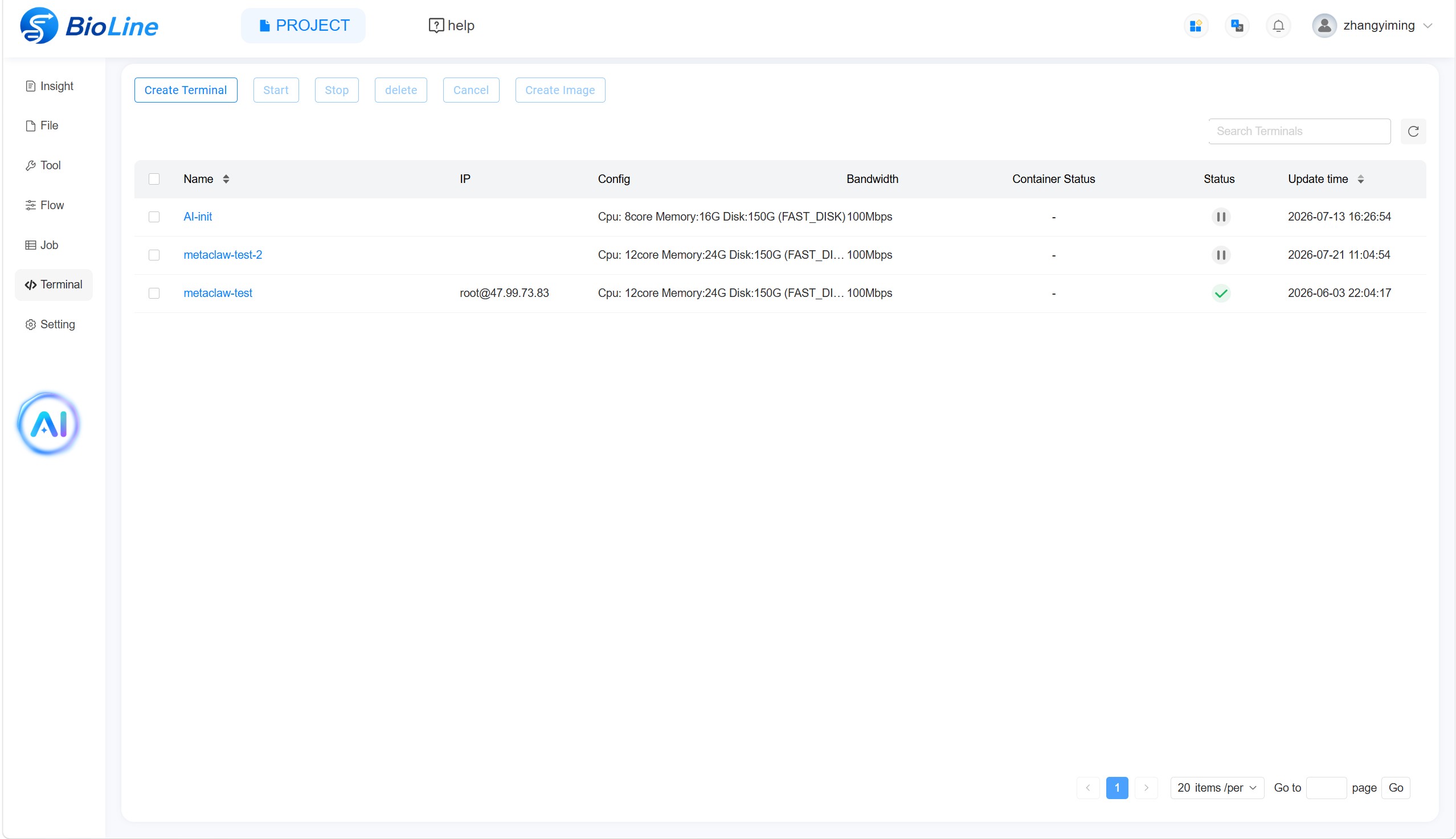
Create a Terminal
Select Create Terminal. The dialog contains COMMON and TOOL tabs. Under COMMON, configure Name, Machine, Cpu(core), Memory(G), Disk(G), Disk, Bandwidth, Type, Password, Confirm, and the Advanced switch. In the current interface, enabling Advanced allows you to customize system disk size for creating a tool terminal. Under TOOL, configure Machine, Cpu(core), Memory(G), Disk(G), Disk, Bandwidth, Type, Password, and Confirm, then use Choose File to select the required file. Select Sure to create the terminal or Cancel to close the dialog. Available types may include Ubuntu, Rocky Linux, and platform-provided images containing tools or environments such as Python or R.
After the configuration is confirmed, startup normally takes approximately one minute. Select the terminal name in the list to open the terminal page and begin working.
Start and Stop a Terminal
Select the checkbox beside a terminal and choose Start or Stop from the toolbar.
Resource Use
BioLine users may not be charged directly for terminal use in a private deployment, but machines should still be stopped when no analysis is running. A paused machine remains suspended and continues to occupy private-cloud memory. Releasing unused resources makes them available to other users.
Terminals can be combined with fkit to process platform files, develop tools, and perform customised downstream analysis.