
2.2 File
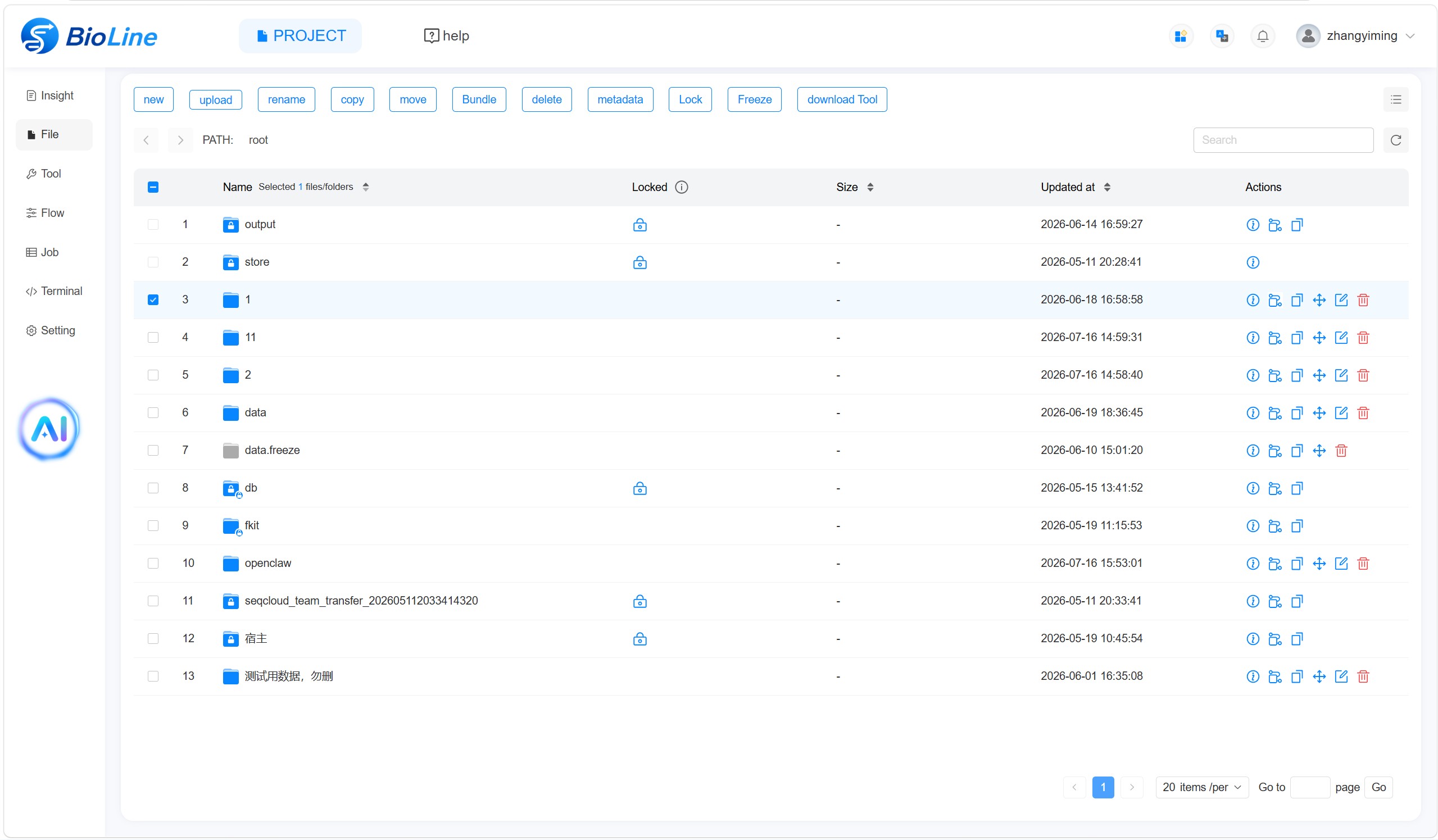
The File page allows users to upload and download files through the web interface or through fkit. It also provides file-management operations for organising project data efficiently.
Create a Folder
Select new in the upper-left corner of the file list to create a folder in the current path. Enter the folder name and save it. Open the folder to upload files or create additional subfolders.
Upload
Select upload in the upper-left corner to upload files to the current path. Use the refresh icon in the upper-right corner of the file list to display newly uploaded content.
Navigate Directly to a Path
The current path is shown above the file list. Enter the target path in the PATH field and press Enter to open that folder directly.
Change the Display Mode
Use the display icon in the upper-right corner to switch between list view and icon view.
Search Files
Enter a keyword in the search box to perform a fuzzy search across matching files and folders within the project.
Refresh the File List
Select the refresh icon in the upper-right corner to reload the current file page.
Sort by Name
Select the Name column heading to sort items alphabetically. The sorting order follows numbers, English names, and Chinese names, with folders placed before files. The system folders output and store are locked, remain at the top of the list, and cannot be moved.
Locked Status
The Locked column indicates whether an item is locked. System folders and files currently required by a running job may be locked automatically. Locked items cannot be deleted, moved, or renamed.
Sort by Size or Update Time
Select Size to sort by file size. Select Updated at to sort by the most recent modification time.
File Actions
The Actions column provides the following operations:
- Select details to view the total size, file count, and directory count.
- Select copy path to copy the file path.
- Select copy to copy the file or folder.
- Select move to move the item to another folder.
- Select** edit to rename an editable item.
- Select delete to delete an editable item.
Select Multiple Files
Use the checkbox beside each item to select one or more files. The toolbar then provides the following batch actions:
- Use new, upload, rename, copy, move, or delete for the selected items.
- Use Bundle to package a folder. After bundling, its contents cannot be modified, but the bundle can be loaded efficiently when creating a job. This is particularly useful for large collections or databases.
- Select metadata to download the basic information for the selected items.
- Select Lock to lock the selected files. The freeze control may appear as Freeze or Unfreeze depending on the current file state.
- Select download Tool to use the FlowHub file-transfer client when a file exceeds the web upload/download limit, for example 500 MB. The client provides a graphical interface for file transfers.
Pagination and Page Size
Use the navigation controls in the lower-right corner to move between pages. The page-size control can display 10, 20, 50, 100, or 300 items per page.
File List Page Selection
Enter a page number in the Go to field and select Go to open that page directly.