
2.3 Tool
Tools that the user has subscribed to, created, or imported into the project are displayed on the Tool page. The page also provides basic tool-management operations.
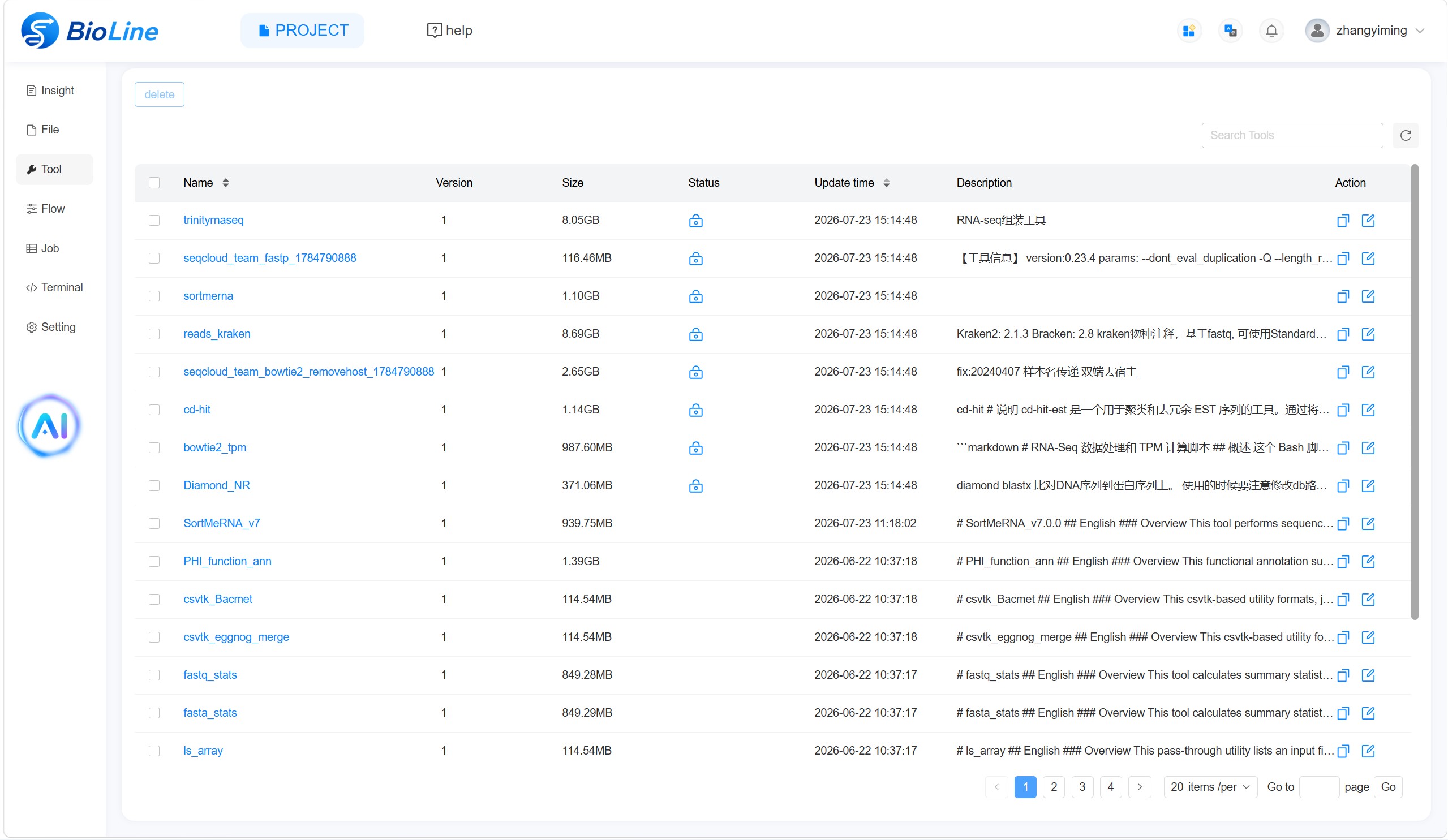
Search and Refresh
Use the Search Tools box in the upper-right corner to find tools by keyword. Select the refresh icon to reload the list.
Copy a Tool
When one tool image contains several sub-functions, copy the imported tool to create a new editable tool and configure another sub-function on the new tool-detail page. This avoids rebuilding and uploading the same image. A freely subscribed resource can also be copied for secondary development; the copied version becomes editable.
Rename a Tool
Use the rename icon in the Action column to change the tool name.
Version Control
BioLine provides version management primarily for developers. When a tool image changes, use fkit to upload the new image as a new version. The new version number will appear in the tool list. See Section 5.2.4 for the fkit workflow.
If the image itself does not change and only command parameters need to be adjusted, open the tool details and select the edit control beside Version. Subscription-only tools cannot be edited. Reconfigure the parameters on the new-version page and save them as a new version.
A version referenced by a flow cannot be edited or deleted. Create a new version, replace the old tool node in the relevant flow, and save the flow. The old version can be removed only after it is no longer referenced.
Delete a Tool
Select the checkbox beside one or more tools and choose delete. A tool referenced by a flow cannot be deleted. Remove or update the referencing flow first. When deleting, confirm whether the operation applies to one version or all versions.
Pagination
Use the Go to field and Go button in the lower-right corner to open a specific tool-list page.